
Migration
Ease of competitive migration might be one of the deciding factor to choose Omnivery. We strive to make your life as easy as possible to switch to Omnivery whether it comes to API compatibility or data migration. For each of the supported APIs we also provide an easy migration tool to transfer your existing data.
The migration itself has to be performed for each individual sending domain. To start the migration process go to Domain detail and click the Migrate button. You will be presented with a dialog showing the first step of the migration process - selection of current provider from the list of supported integrations.
Depending on your choice the second step will reflect the settings required to migrate your data from your existing platform. These are usually access credentials like Username, Password, API key and instance identifiers like Instance or Region.
Migrating from Mailgun
If you are migrating from Mailgun you will need to login to your Mailgun account and retrieve some information.
First off it's important to understand that Mailgun has servers in different regions and each of your domains has a region set. You will need to select the region accordingly in the migration dialog.
Second navigate to your account API keys by clicking on your account selector in top-right corner of the Mailgun dashboard and selecting the API keys menu item.
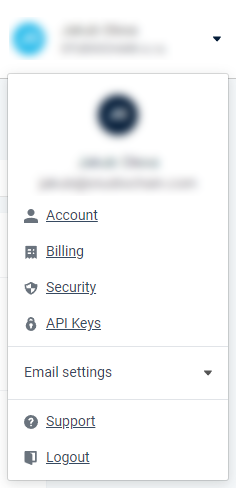
This will get you to your account's API security page. Here you will find your Private API key that you enter into the migration dialog API key field. Before you head over to Omnivery make sure your Mailgun account is not using IP whitelisting.
In case you are using IP whitelist in Mailgun you will have to add a new IP to the whitelist. Click on the Add to whitelist button in the Mailgun user interface and enter
185.136.200.96/27into the IP field.
Migrating from SparkPost
The process of migration from SparkPost is just as easy as the migration from any other platform. Since SparkPost won't let you see your API key in their UI you will either have to request it from your IT team or create a new one. This can be easily done in the SparkPost's UI menu Configuration and its submenu API keys.
Just like Mailgun, SparkPost has multiple regions - make sure to write down which region you are using as you will need to select the correct region matching your API key during migration.
Your API key might be linked to a specific SparkPost subaccount. In such case the API key will only allow you to migrate domains from that subaccount. If there is no subbacount assigned to the API key you will be able to migrate any domain in your account and all its subaccounts.
If use of the API key is limited to specific IPs please add
185.136.200.96/27to the list of Allowed IPs in the API key settings.
Migrating from SendGrid
The process of migration from SendGrid is even easier since SengGrid only has one region. Since SendGrid won't let you see your API key in their UI you will either have to request it from your IT team or create a new one. This can be easily done in the SendGrid's UI menu Settings and its submenu API keys. Make sure the API key you are about to use has full read access to your account.
Performing migration
On the initial screen of your migration you will be prompted so select the Platform you are migrating from, the API key and optionally the Region.
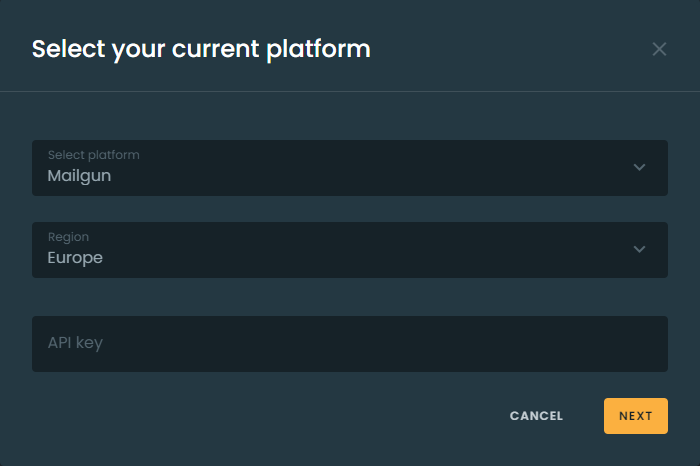
Once you have entered all the information click next. You will be presented with a list of domains available in your current provider's account.
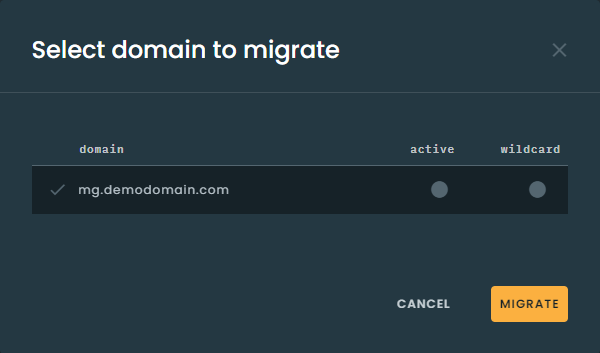
Select the domain for migration from the list and click the Migrate button. This will initiate the migration process. Migration will transfer all domain settings, webhooks, suppressions, whitelists and templates of the selected sending domain to your current Omnivery sending domain. The dialog will indicate the progress of migration.
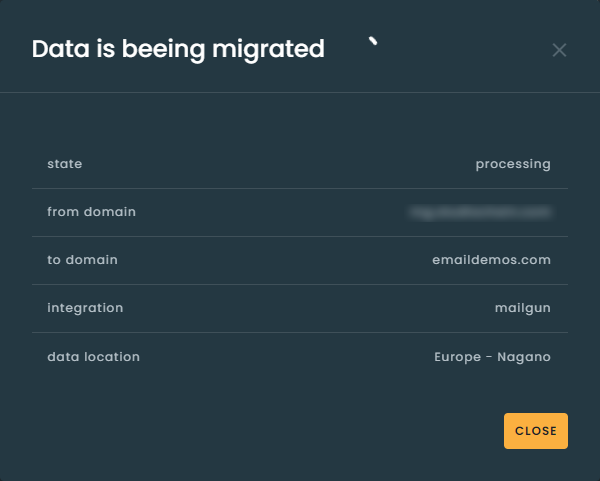
The migration may take several hours depending on the size of your current suppression lists, and other factors. Since the migration is processed in the background you can close this window at any time. Once the migration is complete the dialog will display an overview of migrated data - how many records of each type were migrated. In case you have closed the migration progress dialog there will be a notification in your notifications bar informing you about the migration results.
Migration process always checks existing data for duplicates. If you repeat the migration multiple times the overview will only count new records. If there are no nwe records to be migrated none will be counted.
Comments
Add a comment